
By Cammy Harbison
Writer
0
Share
Newsweek is a Trust Project member
See more of our trusted coverage when you search.Prefer Newsweek on Googleto see more of our trusted coverage when you search.
Want to remove iOS 12 and downgrade to iOS 11? Here's how to restore your device to earlier software.
iOS 12 released on September 12, 2018 and though some were overjoyed to get access to the new MeMoji or group call features, others want the comfort of the previous iOS software. If you want to remove iOS 12 and go back to iOS 11, you're in luck. The window for downgrades is still open. Below we've put together a guide for how to downgrade your iPhone or iPad to the earlier iOS 11.4.1.
How To Downgrade iOS 12 and Restore iOS 11.4.1
Step 1: Be Prepared to Lose Some Data
Read More on Science
iOS 12 hasn't been out long, so chances are you haven't amassed a ton of data. However, one thing users need to be aware of is that when they downgrade to iOS 11.4.1, none of the data they collected while on iOS 12 will be available. This means any iMessages you received or photos and video you shot while using iOS 12 will not be available while downgraded to iOS 11.4.1. If the photos are important to you, you'll want to upload them to web-based storage or manually download them to your computer before downgrading.
Step 2: Download iOS 11.4.1 ISPW
...
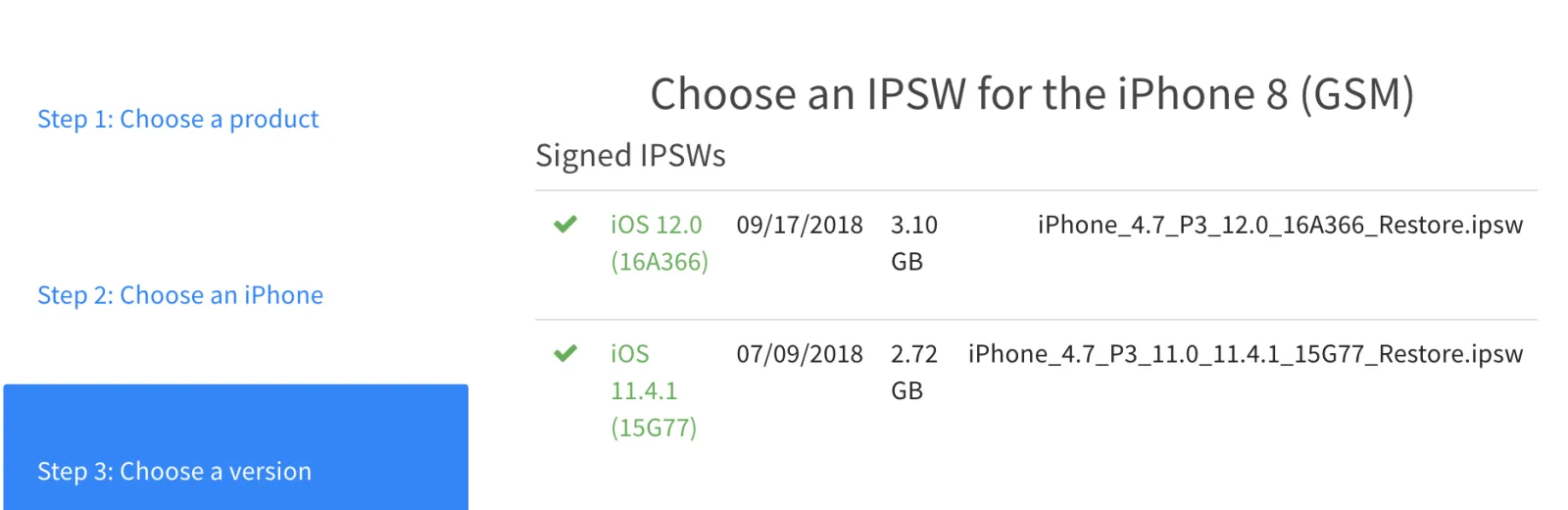
Once you've secured your data, you'll need to download the proper ISPW. To do so:
- Visit IPSW.me and select your device.
- You'll be taken to a list of iOS versions Apple is still signing. Click on version 11.4.1.
- Download and save the software to your computer desktop or another location where you can easily find it.
Step 2: Turn off "Find my iPhone"
- Go to the Settings app on your iPhone or iPad
- Tap on your picture/user name at the top of the screen
- Tap on iCloud
- Tap on "Find my Phone/iPad"
- Toggle "Find my iPhone/iPad" to the off position
Step 3: Connect iPhone/iPad and Start iTunes

...
Once you've downloaded the appropriate firmware, the next step is to plug your iPhone into your computer and launch the iTunes program. Once you are in iTunes, you should see information pop up for your device. You will see the option to "Check for an Update" or "Restore iPhone."
Mac Users:
- While in iTunes, hold down the alt/option key and click on "Check for an Update"
- A window should popup to search. Find where you saved the ISPW and open it.
- An update message should appear on the screen. Press "Update."
Windows Users:
- While in iTunes, hold down the shift key and left click on "Check for an Update"
- A window should popup to search. Find where you saved the ISPW and open it.
- An update message should appear on the screen. Press "Update."
Once the software begins updating/downgrading, DO NOT UNPLUG OR TURN OFF YOUR DEVICE. Your device will turn off and on again at one point and you will need to unlock your device with your passcode if you have one turned on. The device may show one last loading screen to finish the update and then you should be back to iOS 11.4.1
If you are having any trouble downgrading, you can check out this video for additional help. The video shows a downgrade to iOS 9, but the procedure is the same.
View 0 Comments
Submit Correction
View Editorial & AI Guidelines